Help
Search all collections at once with Simple Search
Use Simple search to perform keyword searching across all collections. Keyword searches find documents where search terms are found in the transcript of the scanned text.
By default, all forms of each word in the search string are included in the search. For example, the following search:
buywill include results for buy, buys, buying, bought,etc..
On the results page, you will notice the search string
FORMSOF(INFLECTIONAL, "buy")
To limit results to only those exact words that were entered, enclose the word(s) in quotes.
"buy"will only return documents that match exactly.
Learn more about quote usage in the Multi-word Search Terms section below.
Advanced Search offers several options and features to easily build queries and find exactly what you are looking for. It is divided into 3 major sections: collection, keyword (transcript) searching, and metadata filters.
Collection
The selected collection appears at the top of the page in the dropdown list. The default is Journals. The others are Books and Exhibits. To change collection, simply select from the dropdown list. You will notice the metadata fields update to reflect appropriate fields for the selected collection. Keyword search values will be retained if you select a different collection.
Keyword Searching
Keyword searching finds text in the document transcript. Because keyword searches are specific to pages, results will be returned at the page level. In Advanced Search, there are four fields available to build queries: Search type, Term(s) (1), Boolean, and Term(s) (2).
Search type
Options include Full-text (default) and Term Expansion.- Full-text handles prefixed wildcard, quoted, and word-form searches. When unquoted, all word forms will be included in the search.
- Term Expansion uses the APS custom thesaurus to find related terms based on philatelic definitions and usage.
Term(s) (1)
The first of two search term fields. The first Terms field is used for all Full-text and Term Expansion (thesaurus) searching.
Search terms can be single and multi-word phrases. Wildcard prefixes are allowed.
Boolean
Boolean searches analyze two terms in relation to each other on an individual page transcript.
| AND | all words and terms are found |
| OR | either the first or second term(s) must be found |
| NOT | first term must occur in the absence of the second term |
| NEAR | first term must be found within 5/10/25 words of the second term |
Term(s) (2)
The second search term field is optional, and is most useful when boolean searches require two terms to be analyzed in relation to each other.
Metadata Filtering
Metadata fields are specific to the Collection being searched. These fields can be used with Full-text searching to further limit the result set. They can be used without Full-text searching to browse the collection by metadata characteristics. If only a document-level metadata filter is used, the first page of the matching documents will be displayed in the results grid. The complete document will available in the results viewer. If a journal article metadata filter is used, the first page of the matching journal articles will be displayed in the results grid. The article pages will be available in the results viewer.
Wildcards can be used at any position in metadata filter terms.
Add row + / Delete row / Start Over
Use the Add row + link to add additional full-text search criteria.
To remove a search criteria row, use the trash can button on the far right.
To reset all full-text search fields, use the Start Over link.
Multi-word search terms
Multi-word search terms will yield different results depending on if, and how, they are quoted.
For example, a search without quotes
first day cover ceremonywill find all documents where any form of the individual words are found in the text.
Conversely, a search for
"first day cover ceremony"will only return results where the exact phrase, letter for letter, is found.
Quoting part of a phrase is also allowable, such as
"first day cover" ceremonyThis will return documents where the exact quoted phrase AND any form of [ceremony] are found on the same page.
Quoted search phrases will significanly narrow a result set.
Wildcard searches
Wildcards (*) are used to find documents that have words that match patterns. Wildcards can be used in keyword (transcript) searches as well as metadata filters, but their usage varies slightly.
Wildcards in keyword searching
Wildcards for keyword searches are limited to finding word variations with same prefix. For example,
mount*This will find [mount], [mounts], [mountain], and [mountains].
Wildcards in metadata filtering
For metadata filtering in Advanced Search, wildcards can be used anywhere in the field, such as Author =
*yThis will find all authors with names like [Gary], [Kelly], [Barry], etc.
And searching for
w*ldin Article Title will return articles where titles contain [world] or [wild].
Search Results
Query string editor
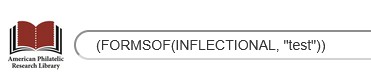
The query string editor shows you exactly what search was sent to the database. Some modification is allowed, however if the Advanced Search was used, it is usually easier to return to the Advanced Search screen to make adjustments. Your original paramteters will remain set.
Results Header

The results header shows you the paramters that were selected for the query: Collection, Applied Metadata filters, and Terms Searched. For non-quoted search terms, the list of Terms Searched will include word forms. For Term Expansion (thesaurus) searches, the Terms Searched will display the corrsponding synonyms.
Result grid options

In the row above the results grid, you will notice the total number of results found in addition to 1) options to change number of results per page, 2) page sort options, and 3) nagivation controls. In addition there are links to Clear saved results and Export Metadata.
Page and document viewing
- Clicking on the image thumbnail will open the larger image for viewing. If full-text searching was used, found search terms will be highlighted.
- Clicking on the link below the image will open the entire document (or journal article, if article metadata was supplied). In this viewer, you can zoom and flip through pages.
You can also view the metadata by clicking in the "More Information" panel on the right.
Export Metadata
Next to each thumbnail are checkboxes that can be checked to mark the page or document for an export of the metadata to be used in research.
After making selections, click the Export Metadata link and download the spreadsheet.